Gmail templates, scheduled send, snooze and nudges: four jobs
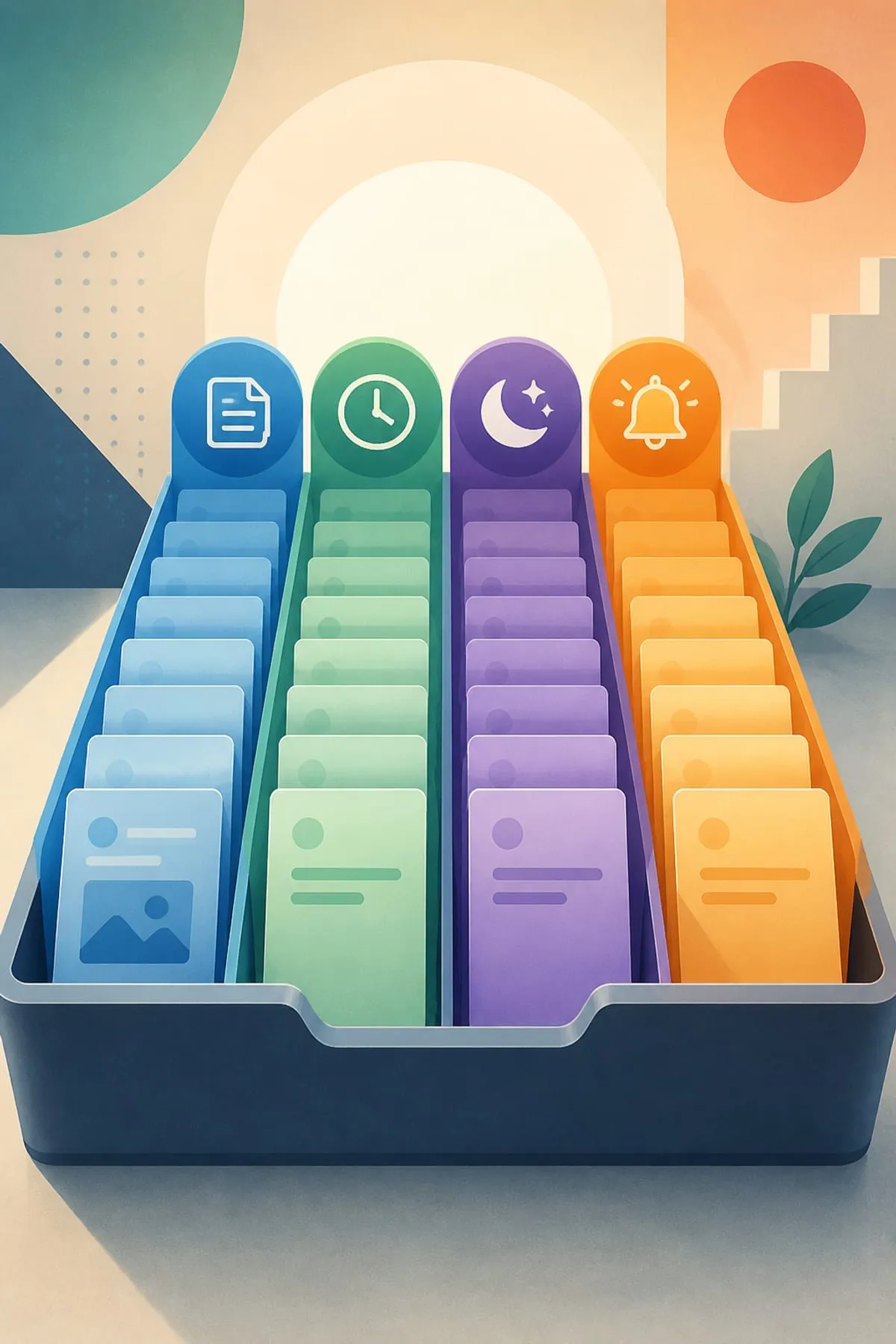
The useful way to combine these Gmail controls is to give each one a separate job. Use a template when the wording is substantially reusable. Use scheduled send when the message is finished but should leave later. Use snooze when an incoming message cannot be handled yet and should temporarily leave the inbox. Use nudges when the risk is not timing but forgetting to reply or follow up. This distinction matters because the four features do not solve the same problem. A template reduces repeated drafting, while scheduled send separates writing time from sending time. Snooze changes when an email returns to your attention. Nudges may surface received messages that still need replies or sent messages that could need follow-up. Treat this as a routing checklist rather than a promise of an empty inbox: Is the wording reusable? Is the draft ready but mistimed? Is action premature? Or is the conversation at risk of being forgotten? Choose the control that matches that specific condition, then review the message itself before acting.
Build reusable drafts with Gmail templates
Gmail templates are intended for messages containing information that does not change frequently. On a computer, open Gmail settings, choose See all settings, open the Advanced tab, enable Templates and save the change. To create one, draft the reusable text in a compose window, open More options, choose Templates, then save the draft as a new template. An existing template can also be overwritten, but deletion deserves caution because Gmail says a deleted template cannot be recovered. For a safer working method, keep only stable wording in the reusable block and add obvious markers wherever a recipient, deadline or other message-specific detail must be inserted. When needed, start a new message, insert the template from More options and complete the variable information before sending. The documented feature is computer-only, so do not build a process that assumes template creation or insertion will be available from every device. Gmail can also use a template for an automatic reply, but that requires a filter and should be configured deliberately.
Separate drafting time from sending time
Scheduled send is appropriate when an email is complete now but should be transmitted later. On a computer, compose the message, select the down arrow beside Send and choose Schedule send. Gmail sends the message according to the timezone in which it was scheduled, so timezone belongs on the preflight checklist whenever timing matters. Google also warns that a scheduled email may be sent a few minutes after its selected time. That makes the tool useful for delayed sending, but the evidence does not support describing it as exact-to-the-minute delivery. Gmail allows up to 100 scheduled emails. To revise one, open the Scheduled section, select the email and choose Cancel send. The message can then be edited and scheduled again for a new date and time. Canceling instead of rescheduling also returns the email to draft status. A practical sequence is therefore: finish the content, verify recipients, check the intended timezone, choose the sending window and confirm that the message does not depend on an exact arrival minute.
Use snooze for work that is not actionable yet
Snooze is a visibility control rather than a reply or delivery feature. Gmail temporarily removes a snoozed email from the inbox and returns it to the top at the chosen day and time. On a computer, point to the email, select Snooze and choose when it should return. Multiple messages can be selected and snoozed together. Snoozed mail remains accessible from the Snoozed area, and Gmail documents the search operator in:snoozed for locating it through search. The practical question is whether hiding the message until a selected time is more useful than repeatedly seeing it before action is possible. If the answer is yes, choose a return time connected to the next realistic decision point. Avoid using snooze merely to make the inbox look shorter, because the documented behavior guarantees a return time, not that the underlying task will be completed. It can also help to review the Snoozed section directly so deferred messages are not treated as gone. The feature changes when the email reappears; it does not draft, send or follow up for you.
Configure nudges for possible reply and follow-up gaps
Gmail nudges are suggestions that may appear at the top of the inbox. One setting can suggest received emails that you may have forgotten to reply to. Another can suggest sent emails that may need follow-up. Before Gmail can provide these reminders for important emails, conversation view must be turned on. On a computer, open Settings, choose See all settings, remain in the General tab and find Nudges. You can enable or disable reply suggestions and follow-up suggestions separately, then save the changes. Nudges differ from snooze because you do not assign a specific return date to each conversation. Instead, Gmail may identify a possible loose end and bring it to your attention. That makes nudges a secondary review mechanism, not proof that every suggested email requires action or that every required follow-up will be detected. When a nudge appears, make a fresh decision: reply, follow up, snooze for a defined time or leave the thread alone. The user remains responsible for reviewing the message and choosing the appropriate response.
Turn the features into a repeatable email review
A simple review can connect the four features without adding unsupported automation claims. First, identify whether the message belongs to a recurring category. If its stable wording will be reused, prepare or insert a Gmail template on a computer, then personalize every variable detail. Second, decide whether the finished message should leave immediately. If not, use scheduled send after checking the recipients, selected time and scheduling timezone; allow for the possibility of a few minutes’ delay. Third, inspect incoming mail that cannot yet be handled. Snooze only when you can choose a meaningful return time, and use the Snoozed section or in:snoozed search when you need to audit deferred items. Finally, decide whether reply and follow-up nudges are useful for your review style, confirm that conversation view is enabled, and configure the two nudge types separately. The durable principle is role clarity: templates hold reusable wording, scheduled send delays completed drafts, snooze defers visibility and nudges suggest potential loose ends. None removes the need for a final human review.
Sources
- Gmail Help — Schedule emails to send (computer)
- Gmail Help — Create a template in Gmail
- Gmail Help — Reply to messages in Gmail (includes nudges: suggestions to reply and follow up)
- Gmail Help — Snooze emails until later (computer)
Narration and illustrations in the companion video were generated with AI. Every claim above was checked against the linked pages on 2026-09-08. Article text expanded on 2026-09-08.
Spotted an error? Report it here. We fix it and list it, dated, on the Corrections page →